
Use Secure Sides to attach NDAs (and sides) to your roles. If you want to receive the signed NDAs back prior to sending Actors the sides, you can send the NDAs first via Eco Cast. Once you receive the NDA back, you will need to send a new audition invitation that contains the sides or other protected information.
Request NDAs from Actors
1) First, attach your NDA to the roles. You have the option to attach the sides at the same time as the NDA because you can choose to only share the NDA. Once uploaded, you can add security options.
For more information on attaching sides to your roles, check out our help article How to Attach Sides and Audition Material to Roles.
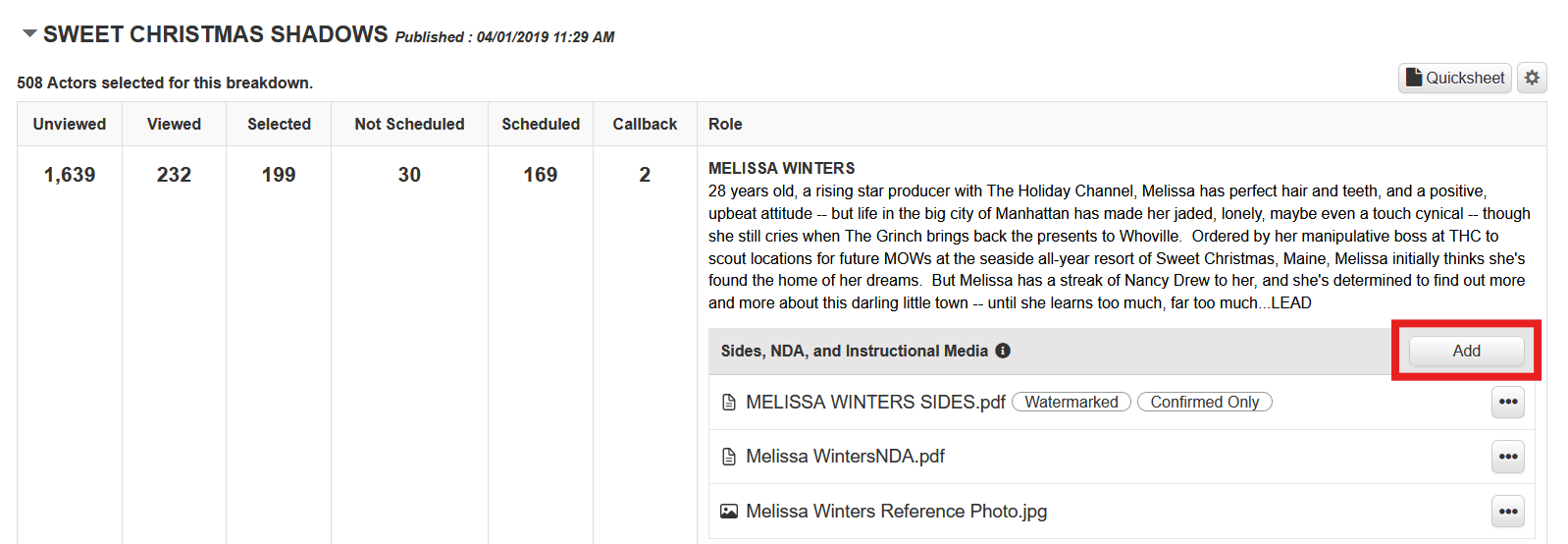
2) To send out NDAs to be signed and uploaded, you will need to include them in an Eco Cast self-tape audition invitation.
For more information on sending sides with audition invitations, check out our help articles How to Request Self Tapes and How to Create and Navigate Eco Casts.
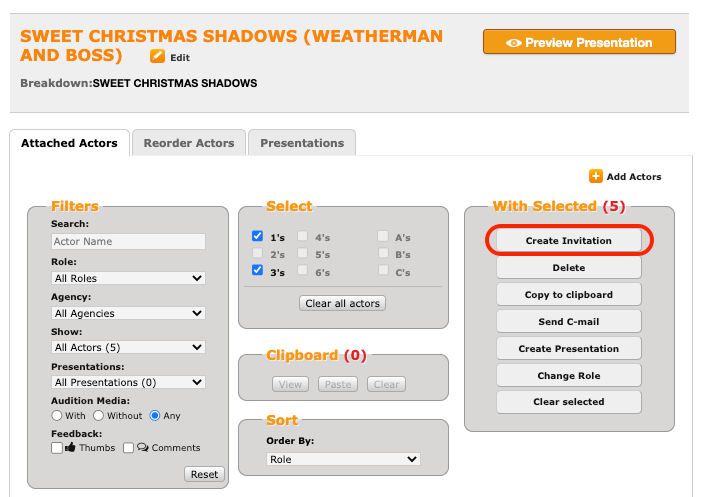
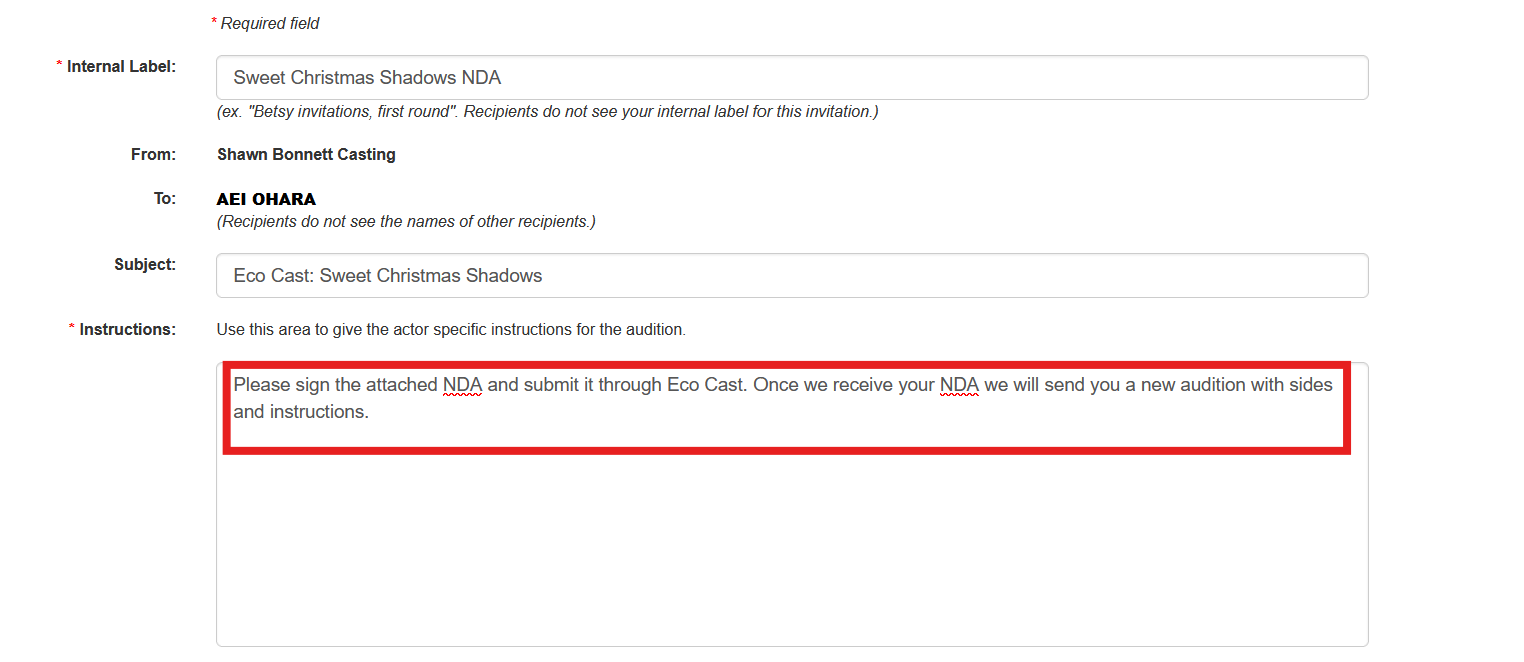
3) In the Instructions field of the Eco Cast invitation, be sure to explain that this invitation is for the NDA only.
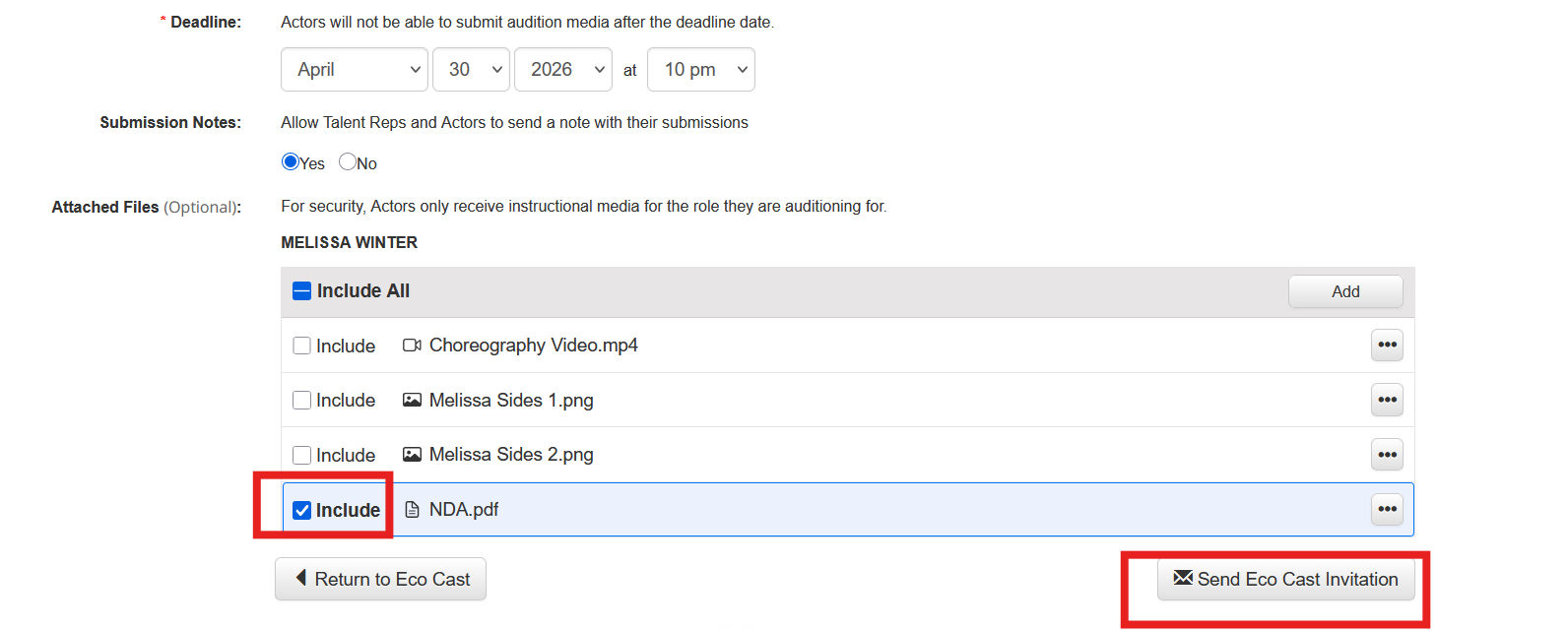
4) Under Attached Files you will need to check Include next to the file name you want to include, before clicking Send Eco Cast Invitation. Otherwise, the file will not be sent. In this case, you would check Include next to the NDA only.
You will also be able to add and manage files when creating audition invitations the same way you can add or manage files on your submissions page.
5) Once an Actor has submitted their NDA you will see a camera icon next to their name in the Eco Cast, to indicate that they have uploaded media. If you select that Actor you can view their uploaded Media files.
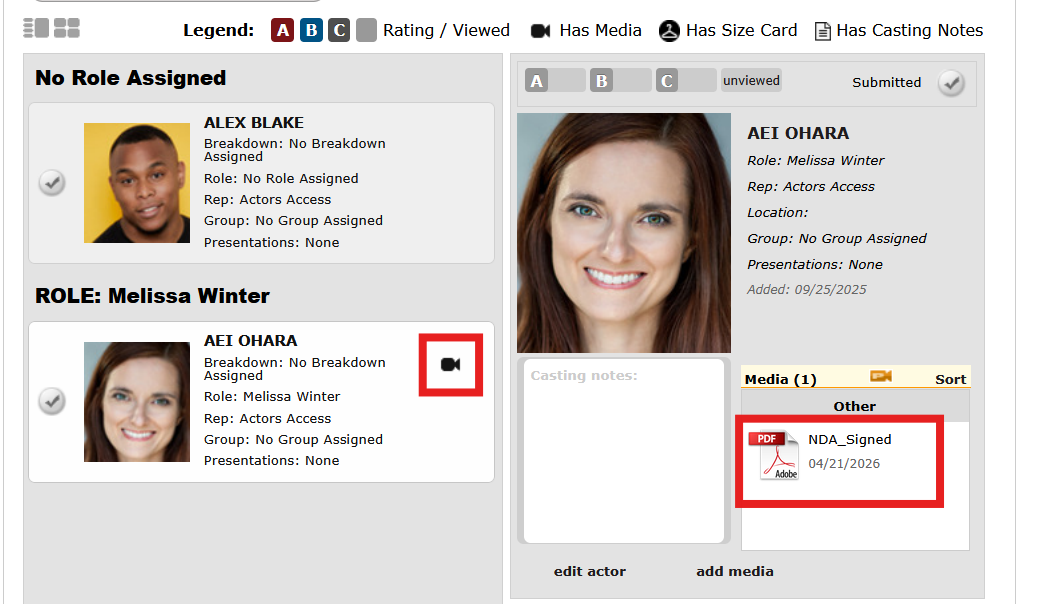
6) After you receive each Actor’s NDA, you can then add them to a new audition invitation that includes the full sides or other audition materials and instructions. The new invitation can be for an Eco Cast Self-tape request, a remote Eco Cast Live audition, or an in-person audition.
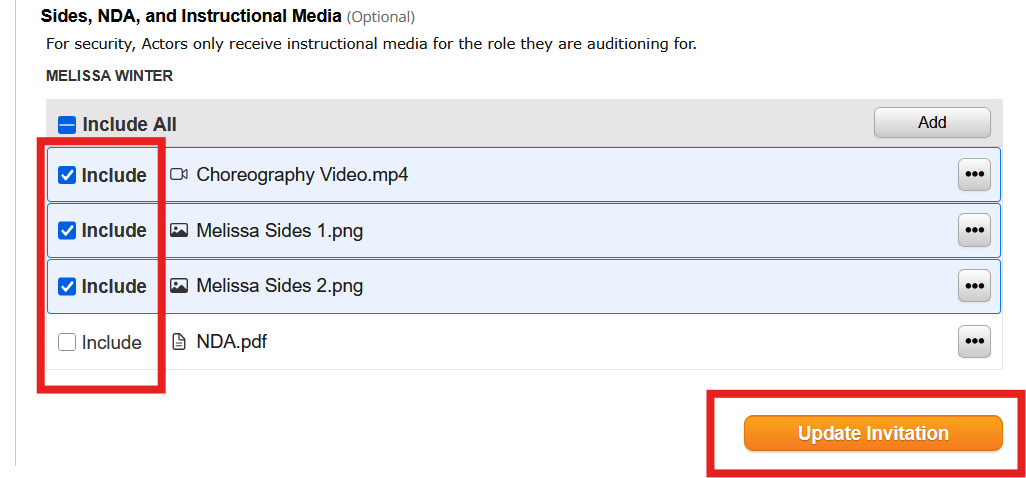
If you wish to add or remove sides after an invitation has been sent, you may check or uncheck the Include box next to each file and then click Update Invitation.
Next Steps: