
There may come a time when you would like to invite an Actor to audition for a role that is different from the role they were originally assigned. Fortunately, there is an easy way to do this within Eco Cast!
Changing Roles
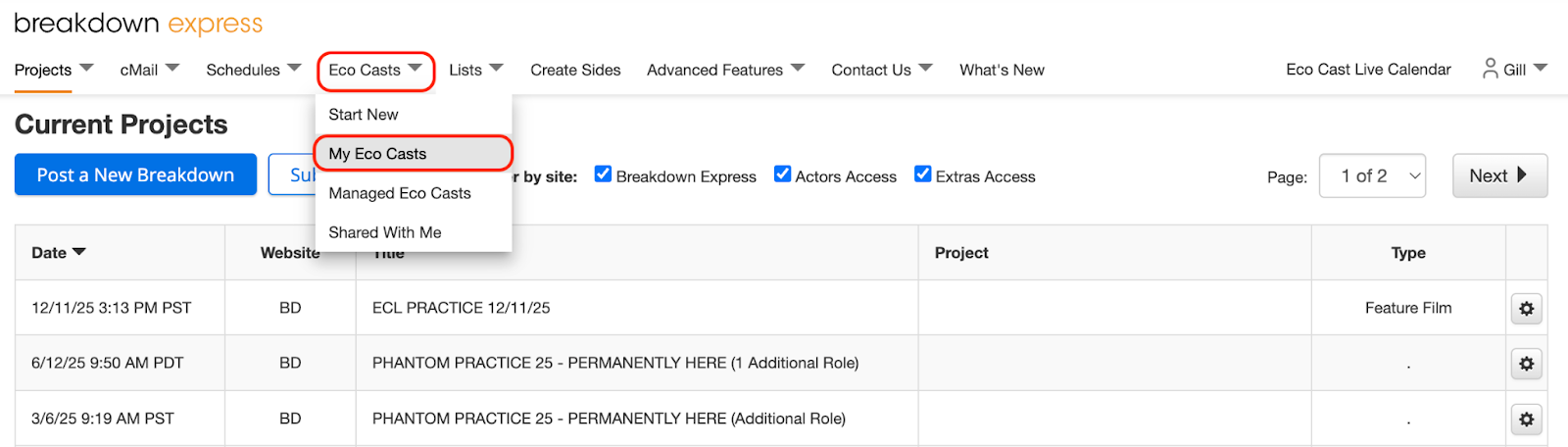
1) Begin by signing into your Breakdown Express account, select the Eco Casts dropdown menu from the top of the page, and select My Eco Casts.
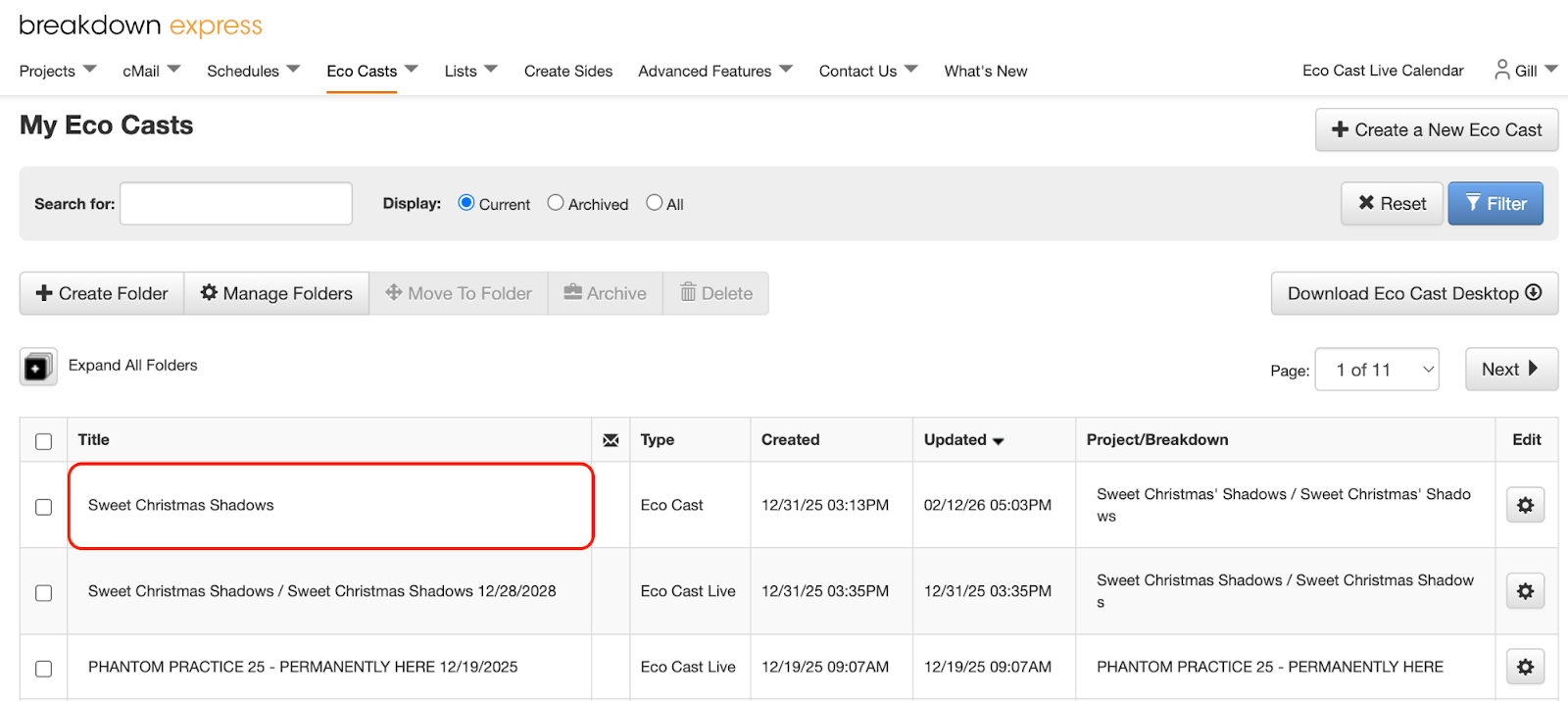
2) Click on the title of your desired Eco Cast to open it.
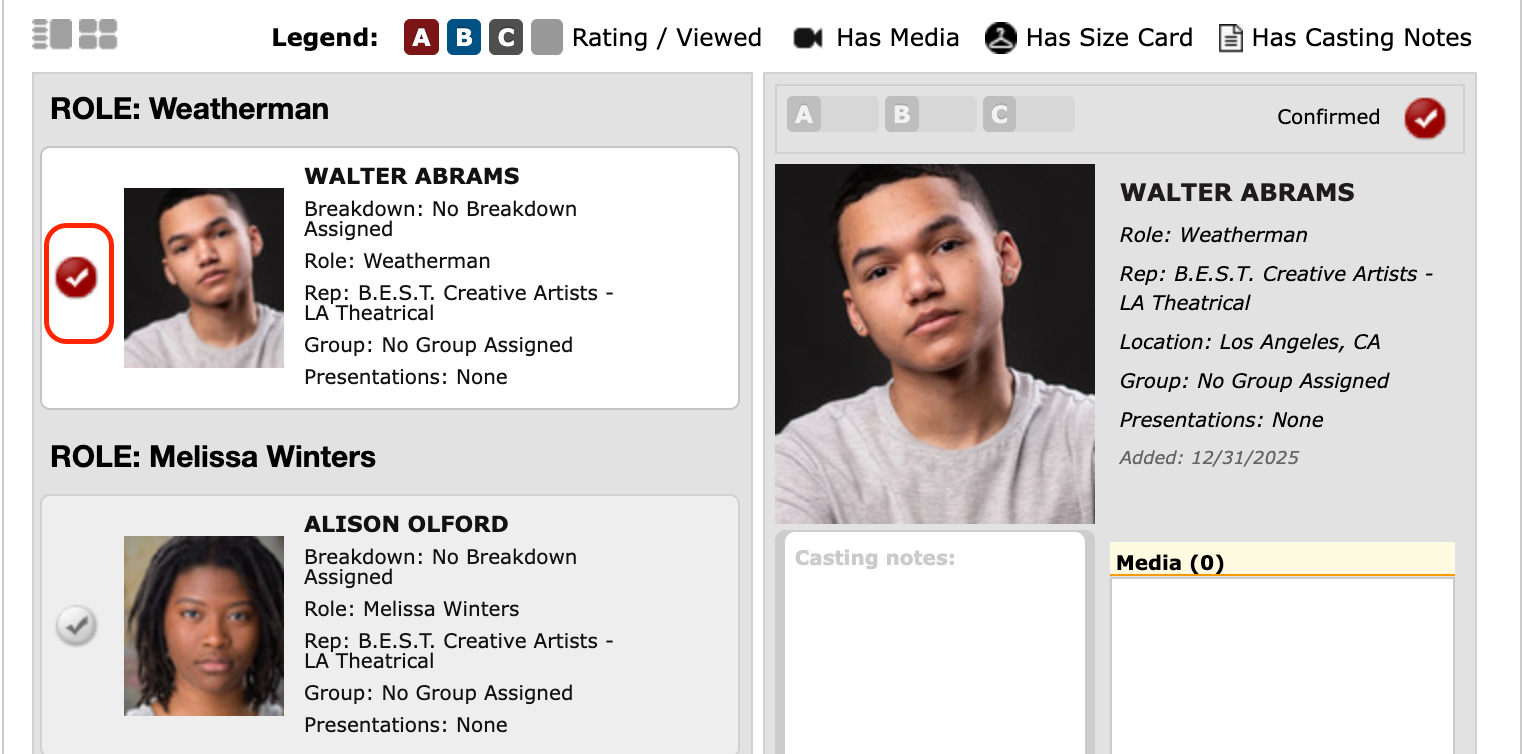
3) From your Eco Cast, select the Actor of your choice by clicking the Checkmark button next to their profile.
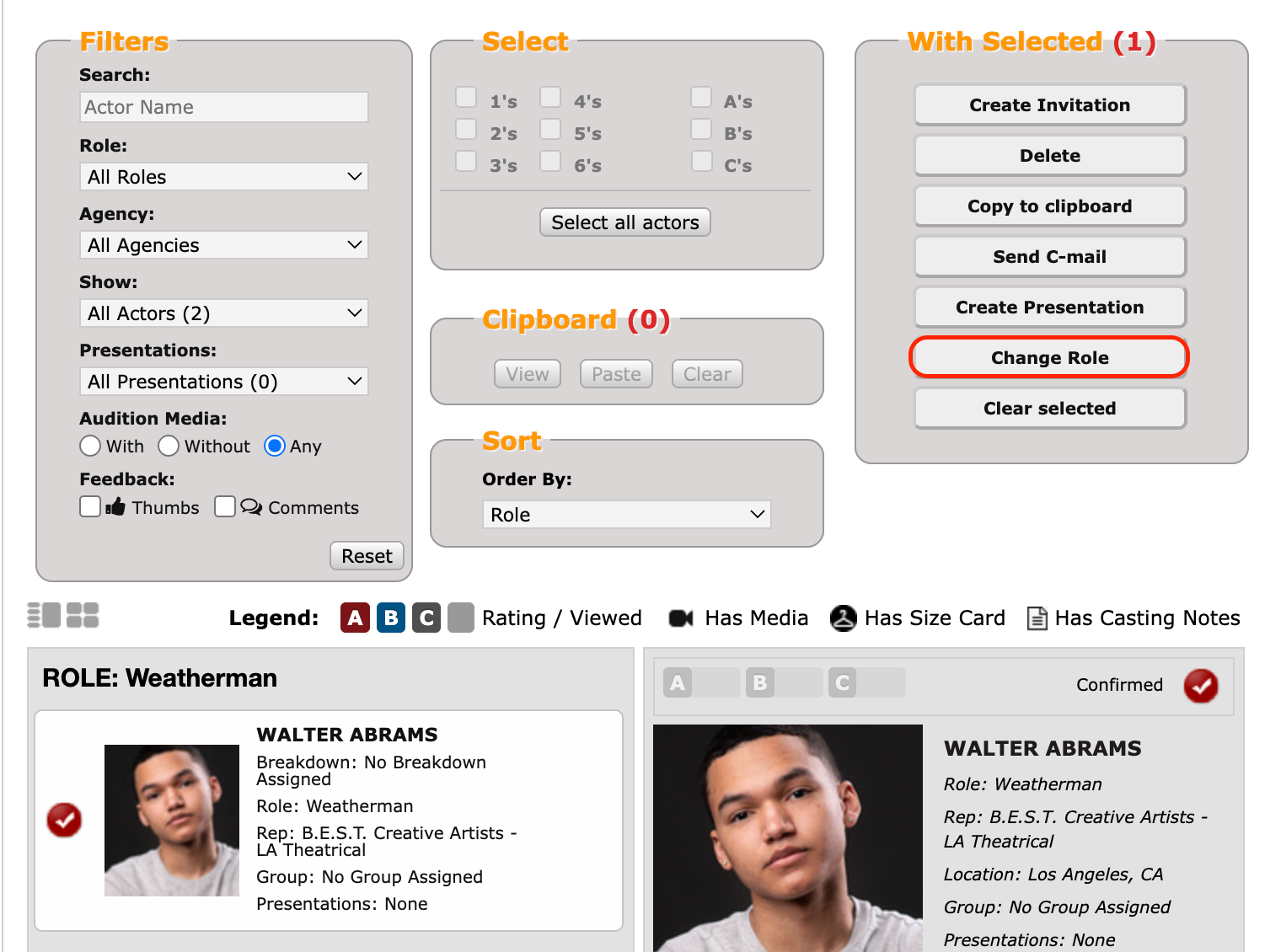
4) From the With Selected window, click the Change Role button.
5) You will be presented with options to assign the Actor to a different existing role, or if you would like to assign the Actor to a new role that is not already listed, you may select [Add custom role] and enter the new role name.
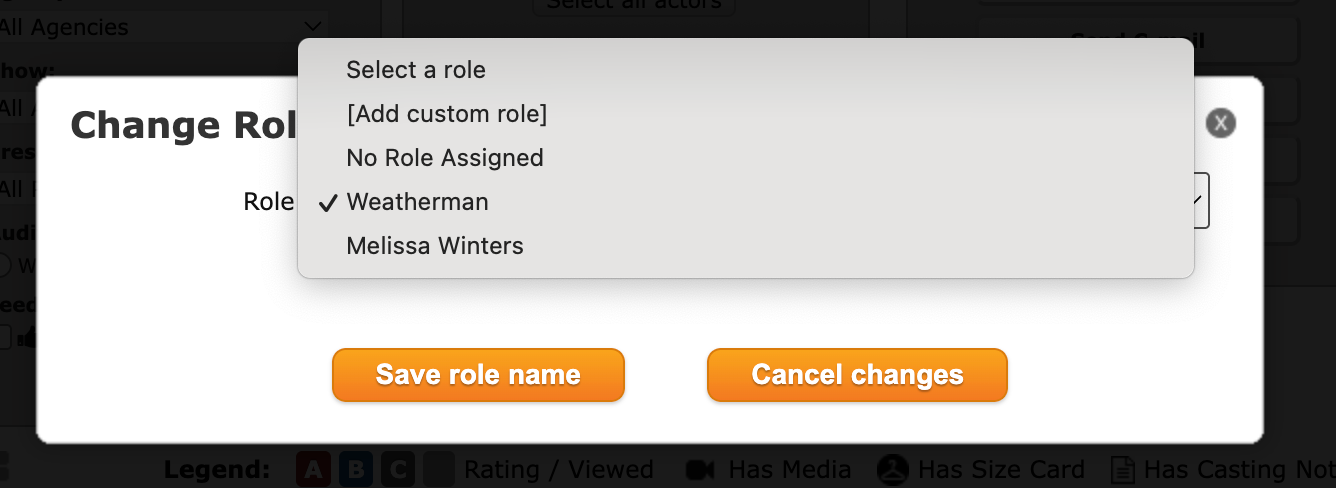
Please note: The roles made available from this dropdown menu are determined by which Breakdown is linked to the Eco Cast.
6) Select the Save role name button to save your changes.
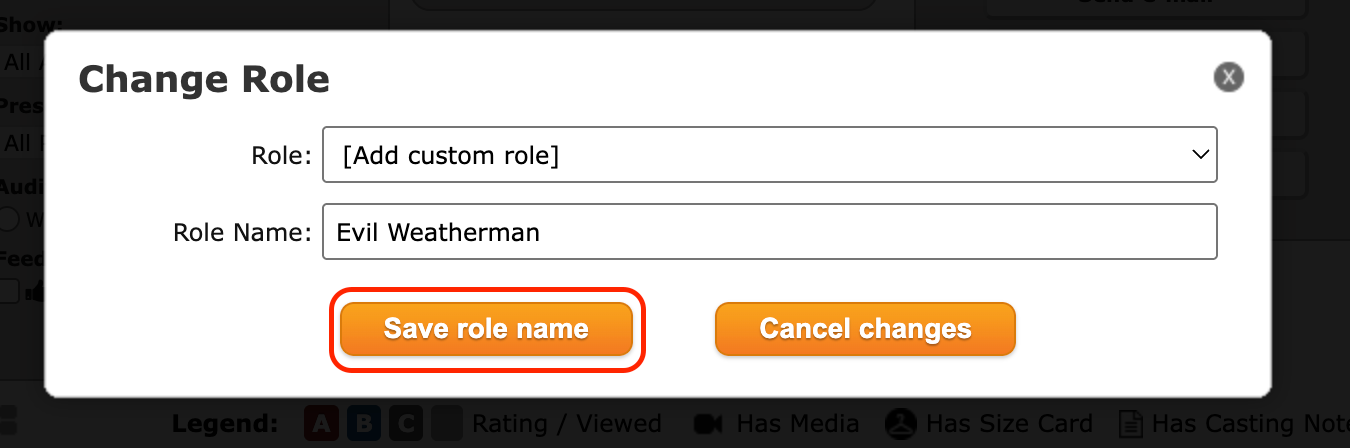
The change will be reflected on the invitation sent to the Actor and/or their Talent Representative.
Please note: It is strongly advised that you not change the role name based on the Actor’s standing with regards to your project (i.e “James - Pass,” “Rebecca - Viewed,” and/or "Amy - Casting Selects") as any changes to the role names are viewable to the Actor and their Talent Representative and may lead to unnecessary follow up that can impede on your workflow.
Instead of changing the role name based on status, consider using the Casting Notes feature to leave Actor-specific, internal feedback, the Clipboard window to paste Actors into different Eco Casts, creating custom presentations or groups, or renaming the Eco Cast to match the project. To learn more about these processes, see Next Steps.
Next Steps: