
On Breakdown Express, each individual user at your company can maintain a unique subset of the entire client roster, speeding up the process of submitting and managing the profiles of the Actors that each person covers. In this article, you will learn how to add and remove clients from your My Clients list, how to use that list when submitting and viewing the client roster, as well as how to set that as a default preference.
Managing My Clients
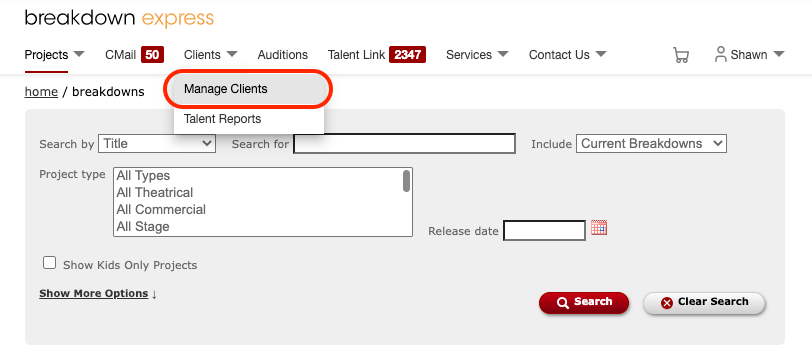
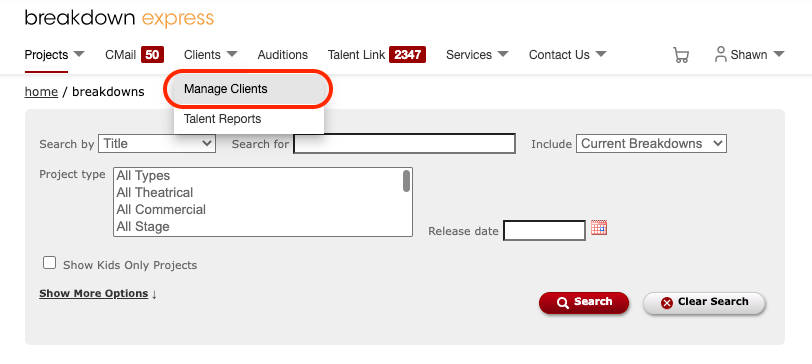
1) To create a My Clients list, start at the full roster. To get there, go to Clients, and then Manage Clients at the top of the page.
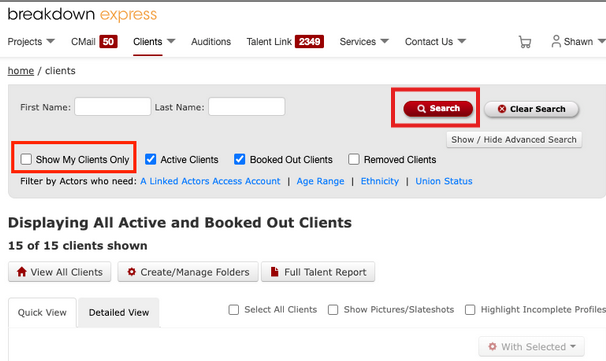
2) Make sure that you have de-selected the Show My Clients Only option by deselecting the box, then clicking Search. This way you will see the entire company roster.
If you do not see this option, please contact us to get the Covering Agent feature turned on.
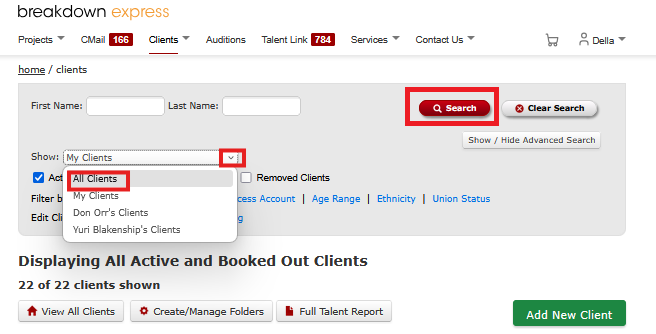
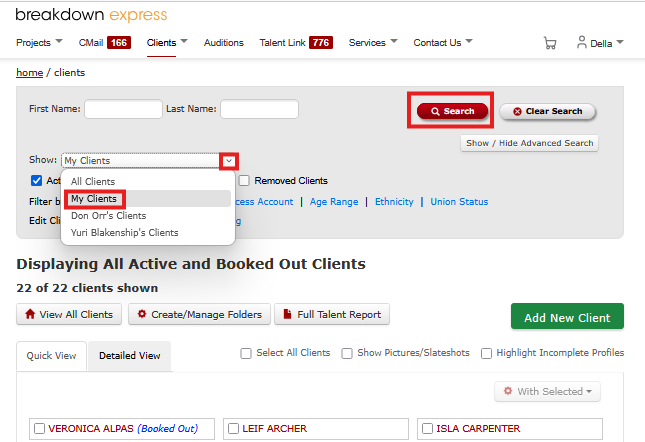
Note: If your Staff Permissions enable you to view and manage the rosters of other members of your Agency, click the Show dropdown menu, select All Clients, and then click Search. This way you will see the entire company roster.
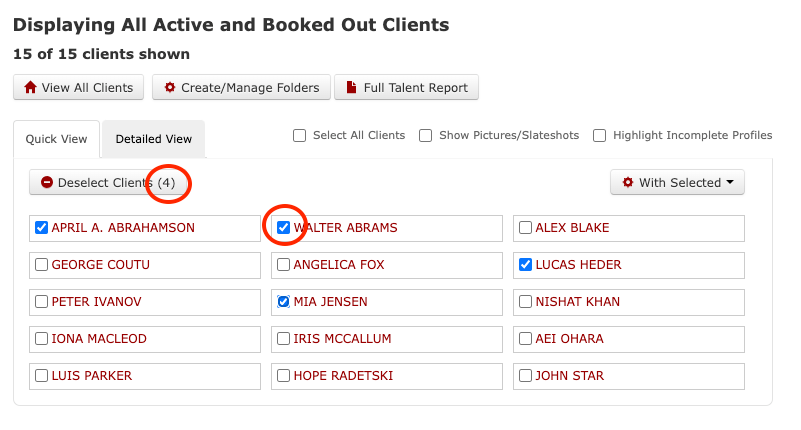
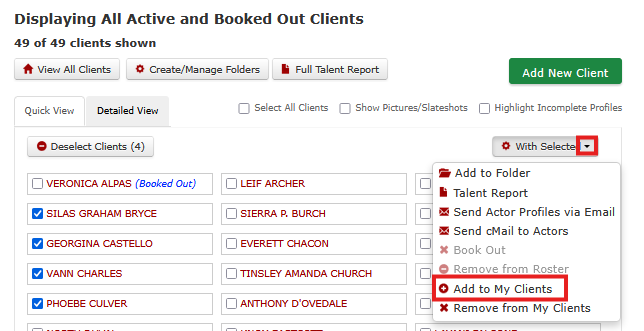
3) Select the Actor(s) you would like to add to My Clients by clicking the check-boxes next to the Actor name(s). You can see how many clients are selected by viewing the number in parentheses next to the Deselect Clients option. You may click on the Deselect Clients button to reset your selections.
4) Click the With Selected drop-down menu and select Add to My Clients to add the Actor(s) to your personal client roster.
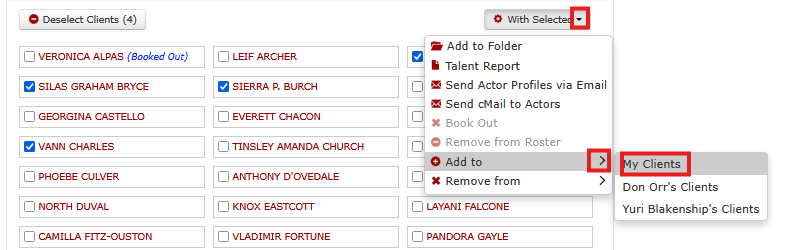
Note: If your Staff Permissions enable you to manage multiple rosters, click the With Selected drop-down menu and select Add to, then select My Clients (or another client roster) to add the Actor(s) to the desired client roster.
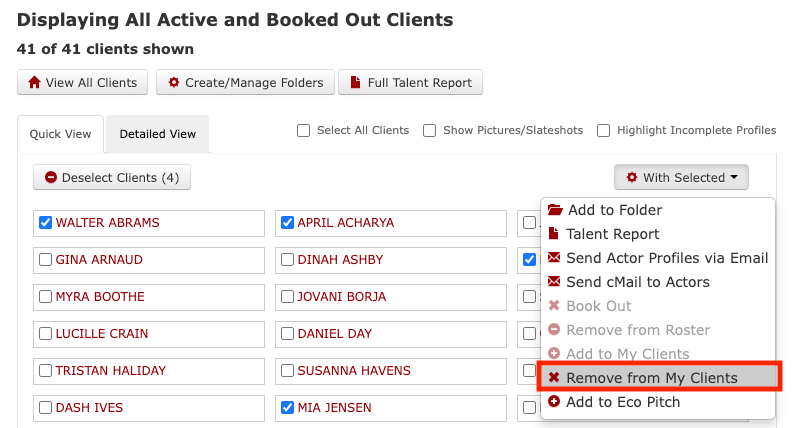
5) If you would like to remove Actor(s) from your My Clients list, click the check-box next to their name(s). Again click the With Selected drop-down menu, but this time select Remove from My Clients.
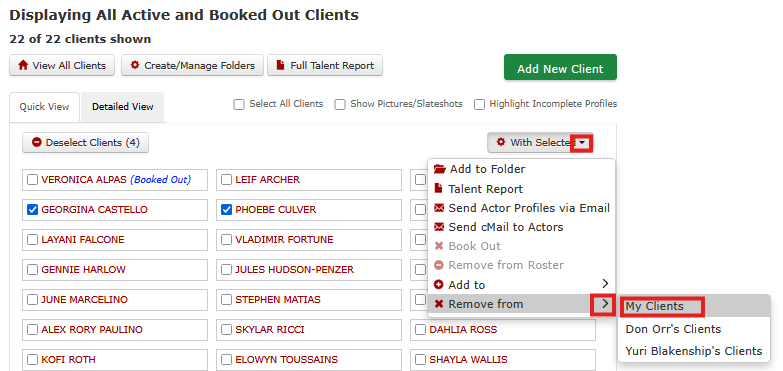
Note: If your Staff Permissions enable you to manage multiple rosters, click the With Selected drop-down menu and select Remove from, then select My Clients (or another client roster) to remove the Actor(s) from the desired client roster.
Filtering Using My Clients When Viewing Client Roster
Once you have Actors added to your My Clients list, you can use this list to filter when viewing the client roster.
1) Go to Clients and then select Manage Clients.
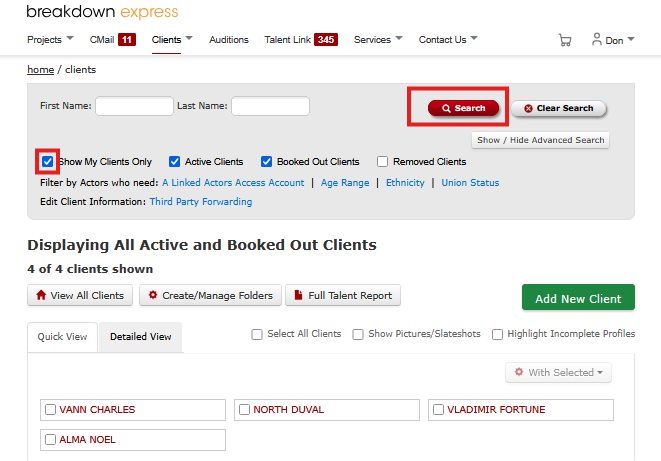
2) Select Show My Clients Only, and then hit Search.
Note: If your Staff Permissions enable you to view and manage the rosters of other members of your Agency, you will also be able to do so by selecting the dropdown menu that will Show which roster is currently being displayed, then clicking Search.
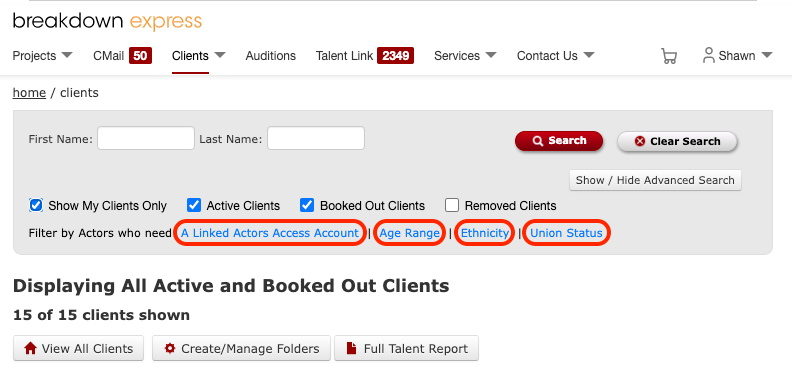
3) This will bring up only the Actors on your My Clients list and you can proceed from here. You can click to filter by Actors who have an incomplete profile and still need A Linked Actors Access Account, Age Range, Ethnicity, or Union Status inputted. Once you have filled in this information, your clients will appear under the appropriate category when you use the filters to submit on a Breakdown.
Filtering Using My Clients When Submitting
Once you have Actors added to your My Clients list, you can use this list to filter when submitting Actors.
1) Go to Projects and then Breakdowns at the top of the page.
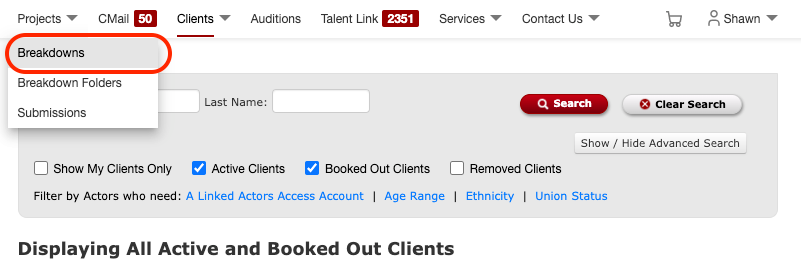
2) Click into the project you would like to submit an Actor to and then click on the role. In the Simple Search area select Search My Clients (under Show) and then hit Search.
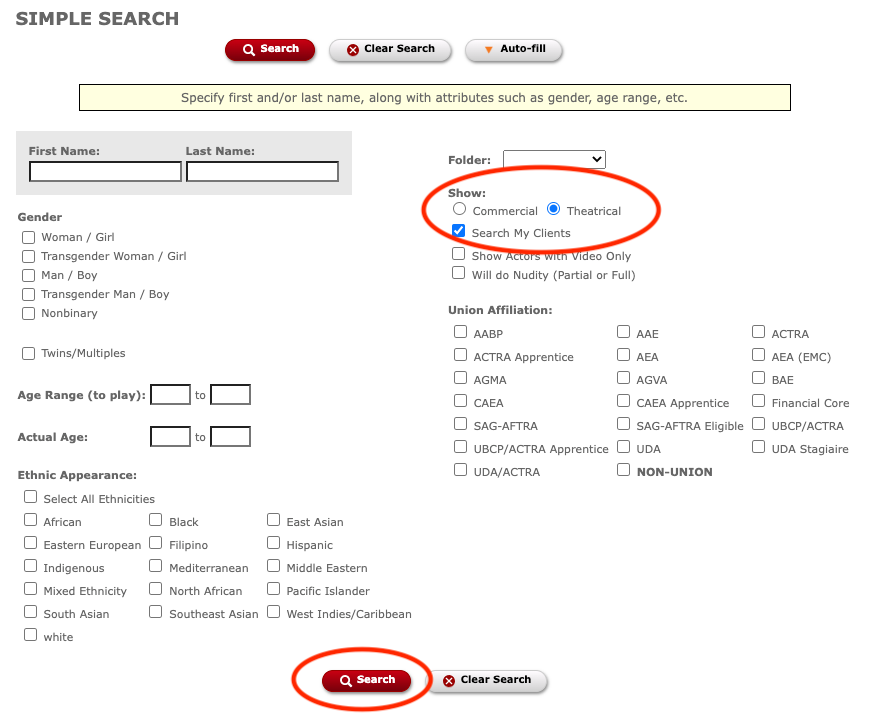
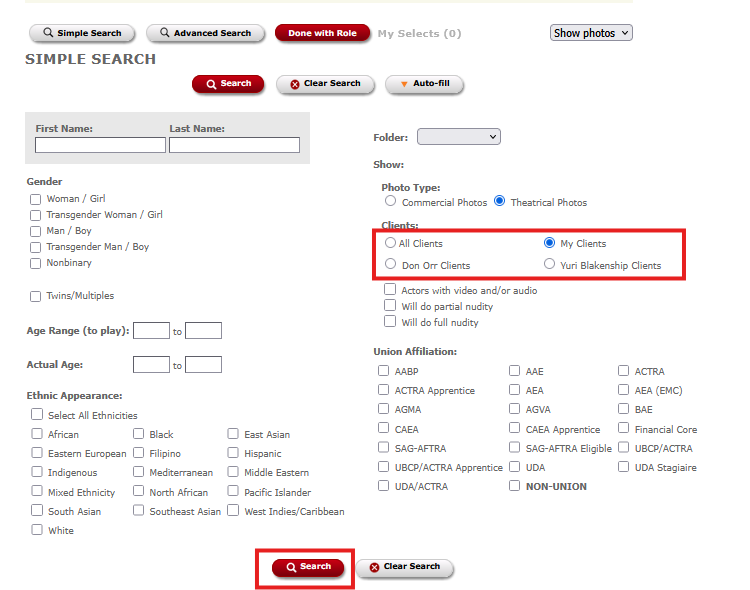
Note: If your Staff Permissions enable you to view and manage the rosters of other members of your Agency, you will be able to select the desired roster under Clients, and then hit Search.
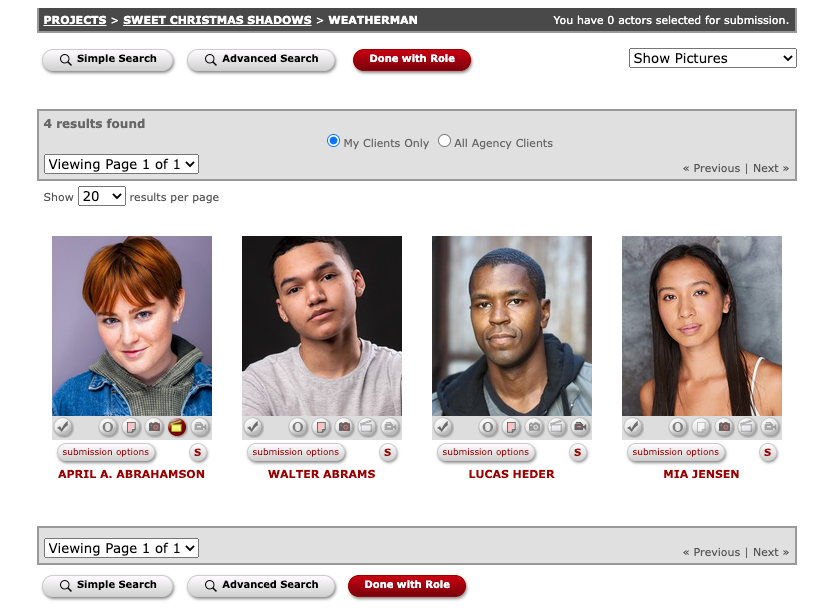
3) This will bring up a page of only your clients. You can then submit off of this list.
For more information on submitting clients, please reference How to Submit Clients to Roles.
Setting My Clients as Default Preference
If you would like to always view your My Clients list when viewing the client roster and when submitting, you are able to set this as a default preference.
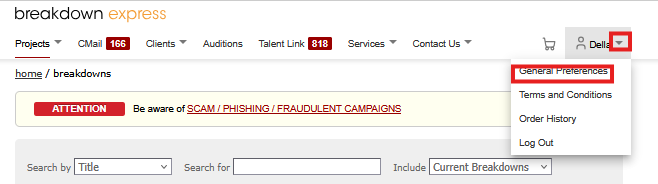
1) Click the dropdown arrow next to your name, in the top right corner of the screen, and then click General Preferences.
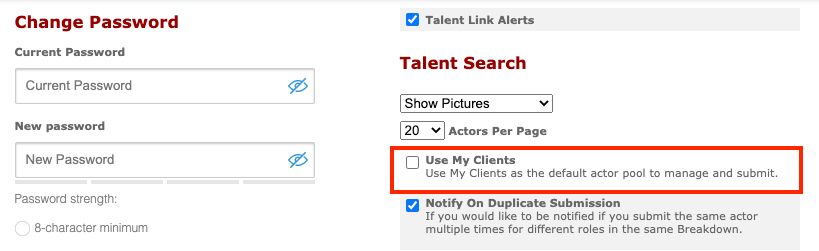
2) On the right-hand side, under Talent Search, click the check-box next to the Use My Clients option.
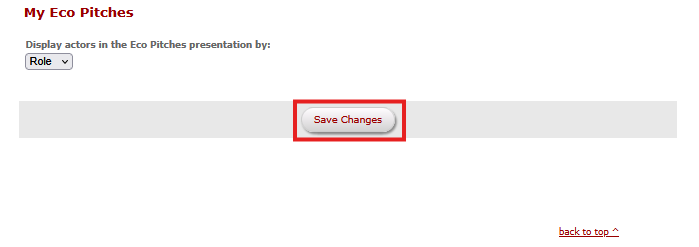
3) Once you have clicked that, make sure to scroll to the bottom of the page and click Save Changes.
Next Steps: