
Staff Permissions allow different users at your company to view and manage the rosters of other members of your company, including their My Auditions, My Client Lists, My Client Folders, My CMails, and My Submissions account sections on Breakdown Express. Admin level users can edit the Staff Permissions for other users.
Viewing Your Staff Permissions
You can check your Staff Permissions to see if you are enabled to view and manage the rosters of other members of your Agency,
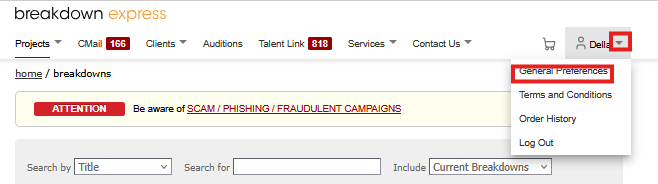
1) Click the dropdown arrow next to your name, in the top right corner of the screen, and then click General Preferences.
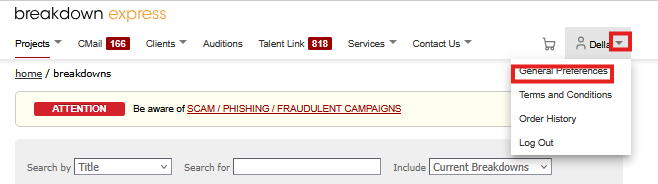
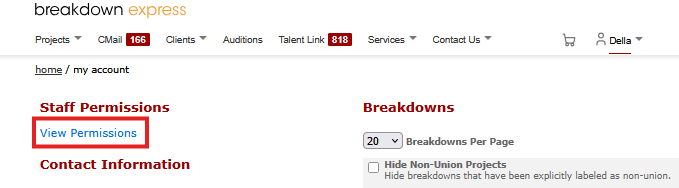
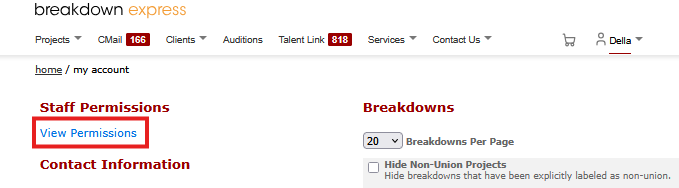
2) On the left-hand side, under Staff Permissions, click View Permissions.
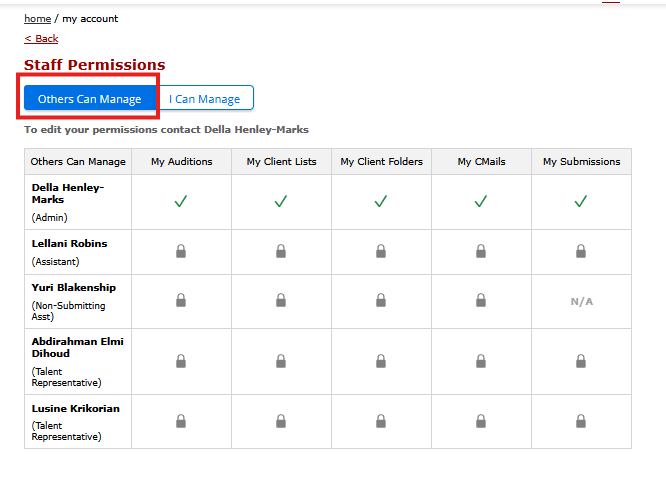
3) If you select Others Can Manage you will see which other members of your company can manage which areas of your account, including My Auditions, My Client Lists, My Client Folders, My CMails, and My Submissions. There will be a checkmark in that field if a company member has access, and a lock icon if they do not have access.
Non-Submitting Assistants are not able to access My Submissions for any company member.
Contact an Admin at your company if you would like these permissions edited.
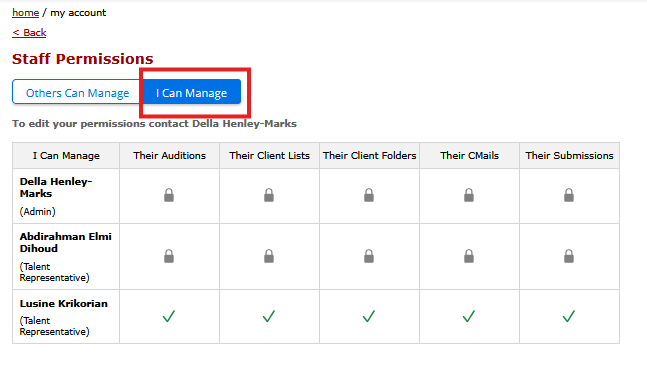
4) If you select I Can Manage you will see which areas of their accounts you are authorised to access for other members of your company, including Their Auditions, Their Client Lists, Their Client Folders, Their CMails, and Their Submissions. There will be a checkmark in that field if a company member has access, and a lock icon if they do not have access.
If you are a Non-Submitting Assistant, you will not be able to access Their Submissions for any company member.
Contact an Admin at your company if you would like these permissions edited.
Managing Your Company’s Staff Permissions
If you are an Admin, you can manage the Staff Permissions of other members of your Agency, only Admin level users have this ability.
1) Click the dropdown arrow next to your name, in the top right corner of the screen, and then click General Preferences.
2) On the left-hand side, under Staff Permissions, click View Permissions.
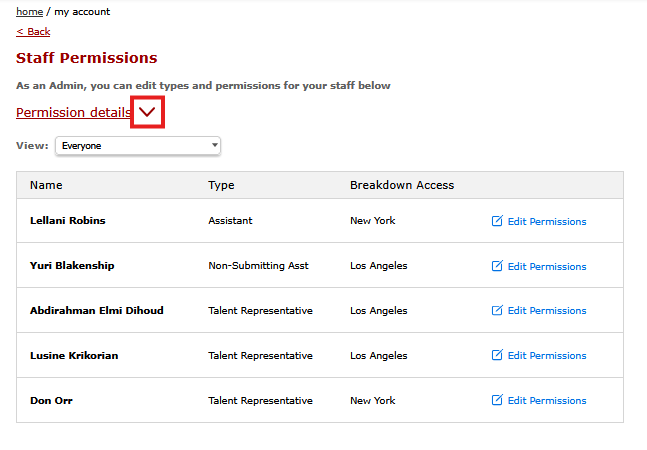
3) To read more about Staff Permissions, click the dropdown arrow next to Permission Details.
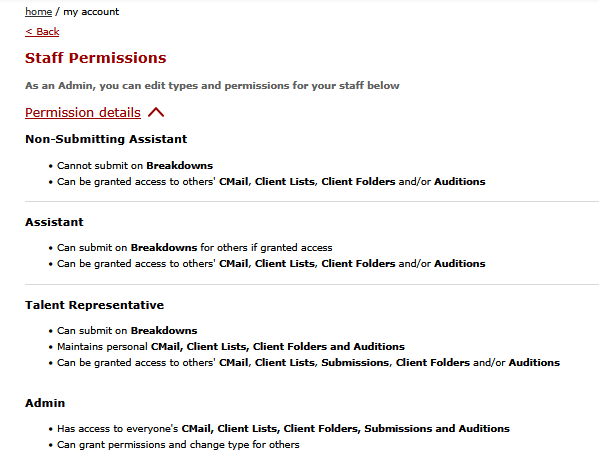
Non-Submitting Assistant
Cannot submit on Breakdowns
Can be granted access to others' CMail, Client Lists, Client Folders and/or Auditions
Assistant
Can submit on Breakdowns for others if granted access
Can be granted access to others' CMail, Client Lists, Client Folders and/or Auditions
Talent Representative
Can submit on Breakdowns
Maintains personal CMail, Client Lists, Client Folders and Auditions
Can be granted access to others' CMail, Client Lists, Submissions, Client Folders and/or Auditions
Admin
Has access to everyone's CMail, Client Lists, Client Folders, Submissions and Auditions
Can grant permissions and change type for others
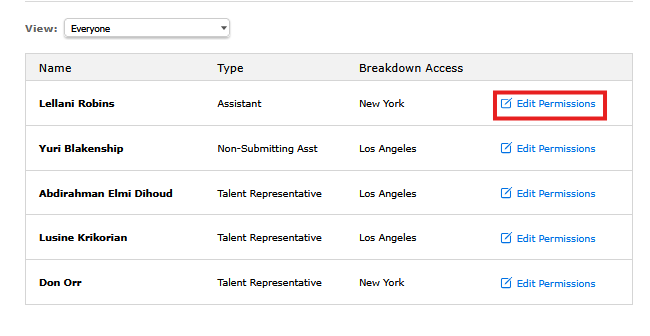
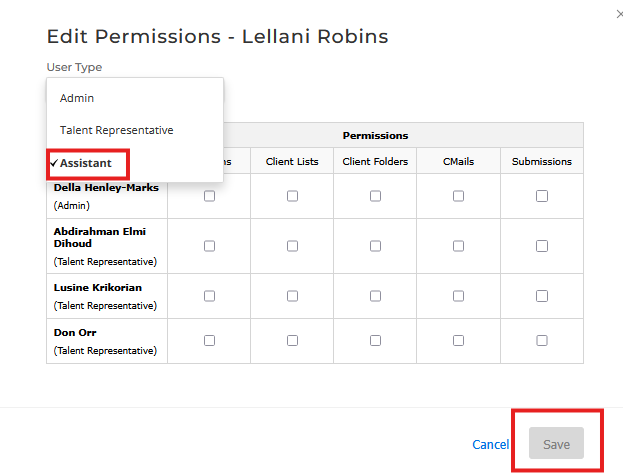
4) To change the Staff Permissions for a specific user, click Edit Permissions next to their name.
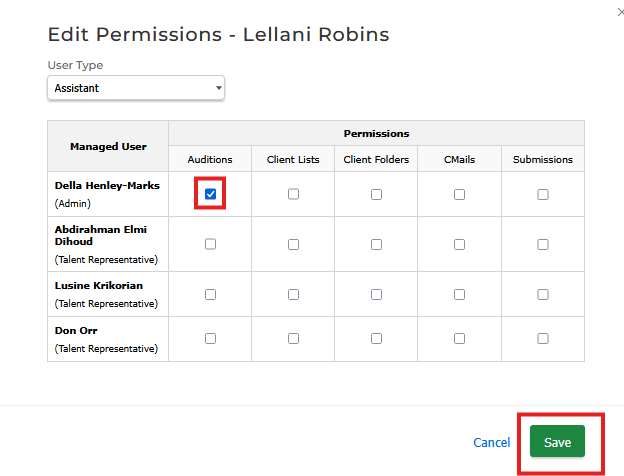
5) Check or uncheck the boxes for each area you want to grant access or remove access for this user, and then click Save.
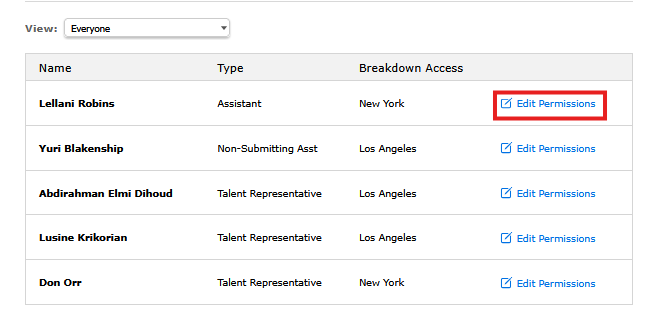
6) To change the User Type for a specific user, click Edit Permissions next to their name.
7) Click the dropdown arrow under User Type.
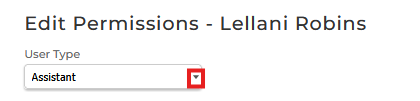
8) Select the new User Type, and then click Save.
If you wish to change a company member to or from Non-Submitting Assistant, you will need to contact requests@breakdownservices.com to request that change.
Next Steps: